> ## Documentation Index
> Fetch the complete documentation index at: https://docs.proficientai.com/llms.txt
> Use this file to discover all available pages before exploring further.
# React SDK
The React SDK for Proficient AI provides you with ready-to-use and customizable interfaces where your users
can interact with your agents. Internally, it uses the [JS Client SDK](/sdks/js-client) to connect to your
agents. The React SDK currently comes with one component named `InteractionView`, which can be themed
and customized to your application's needs.
 ## Installation
You can install the React SDK via [npm](https://www.npmjs.com/package/@proficient/react) or [Yarn](https://yarnpkg.com/package/@proficient/react).
```bash npm theme={null}
npm i -E @proficient/react
```
```bash yarn theme={null}
yarn add -E @proficient/react
```
## Installation
You can install the React SDK via [npm](https://www.npmjs.com/package/@proficient/react) or [Yarn](https://yarnpkg.com/package/@proficient/react).
```bash npm theme={null}
npm i -E @proficient/react
```
```bash yarn theme={null}
yarn add -E @proficient/react
```
## Quickstart
You can connect your application to Proficient AI in just a few minutes.
**Prerequisite:** Make sure you've created and activated an agent before
proceeding further. See [creating my first agent](/#create-agent) for more
details.
Copy the publishable API key associated with your project from [Project Settings](https://proficientai.com/project-settings).
Add it as a `NEXT_PUBLIC_PROFICIENT_API_KEY` environment variable to your app.
For details on how to add an environment variable to your Next.js app see the
[official
docs](https://nextjs.org/docs/pages/building-your-application/configuring/environment-variables).
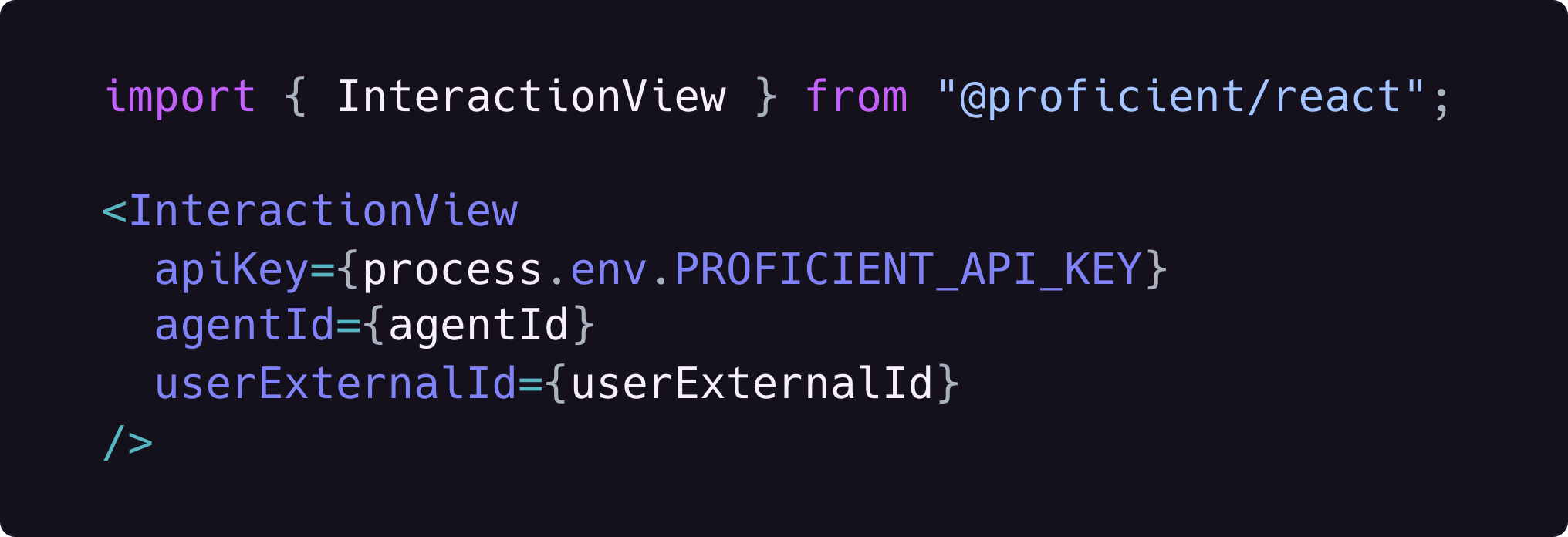
Now add the `InteractionView` component to the page where you want your users to interact
with your agent.
```tsx theme={null}
import { InteractionView } from "@proficient/react";
export default function App() {
// Agent ID can be hardcoded or retrieved from the API
const agentId = "ag_Lad8YCGGiDLiqIZPWRXmc2ix";
// User external ID should be accessed dynamically
const userExternalId = "gtLIK8ELsHTr0Fajg28Ud9eFpJJ3";
return (
);
}
```
Copy the publishable API key associated with your project from [Project Settings](https://proficientai.com/project-settings).
Add it as a `PROFICIENT_API_KEY` environment variable to your app.
If you're not sure how to add an environment variable to your React app, check
out [this
page](https://www.architect.io/blog/2022-08-16/react-environment-variables-developers-guide/).
Now add the `InteractionView` component to the page where you want your users to interact
with your agent.
```tsx theme={null}
import React from "react";
import { InteractionView } from "@proficient/react";
export default function App() {
// Agent ID can be hardcoded or retrieved from the API
const agentId = "ag_Lad8YCGGiDLiqIZPWRXmc2ix";
// User external ID should be accessed dynamically
const userExternalId = "gtLIK8ELsHTr0Fajg28Ud9eFpJJ3";
return (
);
}
```
The `userExternalId` variable above simply refers to the unique ID of your user. For
more details see [User External ID](/concepts#external-id).
## `InteractionView`
A chat interface component that allows your users to interact with your Proficient AI agent.

This is currently the only component that the React SDK offers. [Let us
know](https://discord.gg/DVbwTM8erb) if you need other types of components.
We'd love to support your use case!
### Props
The publishable API key associated with your project. This can be found in the
admin dashboard.
The unique ID of the agent. This can be found in the admin dashboard.
The unique ID of the user within your system. See [User External
ID](/concepts/external-id) for more details.
Either the HMAC hash for the given user or a function that returns a Promise
resolving to the HMAC hash. This is required if the project has HMAC
authentication enabled. Internally, the component caches the HMAC hash so that
it is not computed on every render. See [HMAC
Authentication](/client-api/auth#hmac-authentication) for more details.
The type of the chat interface layout.
* `"casual"`: looks like iMessage/WhatsApp.
* `"formal"`: looks like ChatGPT.
Chat section height in pixels. Must be greater than or equal to 240.
Header section height in pixels. Must be greater than or equal to 54.
If set to `true`, sending a message to the agent will automatically trigger an
[Ask](/client-api/messages/ask) request and the agent will reply to the
message. This is the intuitive option but if you disable it, users will be
able to send multiple messages before asking for a reply.
If set to `true`, pressing Enter will send the current text input as message.
The placeholder for the text area.
The theme object including your brand colors. Can be created with the
`createTheme(params)` factory function. See [custom themes](/#custom-themes)
for more details.
## Custom themes
You can use a custom theme to preserve your brand identity and ensure that the component
interface matches the rest of your application.
Custom themes can be created with the `createTheme(params)` factory function which currently
takes three colors as parameters. We then dynamically compute the rest of the colors that
the component uses based on these three values.
```ts theme={null}
import { createTheme } from "@proficient/react";
const theme = createTheme({
colors: {
background: "#1d1822",
primary: "#9c0588",
text: "#fff",
},
});
```
Simply pass the theme object to the component as the `theme` prop.
```tsx theme={null}
```
If you're not happy with the dynamically computed theme, you can create it
yourself instead of using `createTheme(params)`. A theme is just a plain
object that conforms to the
[ProficientTheme](https://github.com/proficientai/js/blob/main/packages/react/src/context/theme.ts)
interface so you can create it any way you want.